Is your ChargePoint charger blinking white, and you’re wondering what it means? That blinking light can be confusing, especially when you want to get your electric vehicle charged quickly and hassle-free.
The good news is, this blinking white light isn’t always a sign of a major problem. In fact, it often points to your charger trying to connect to Wi-Fi or updating its software. But if left unresolved, it can stop your charging session from starting smoothly.
You’ll discover exactly why your ChargePoint is blinking white and, most importantly, how to fix it so you can get back on the road without delay. Keep reading to unlock simple steps that can save you time and frustration.
Chargepoint White Light Meaning
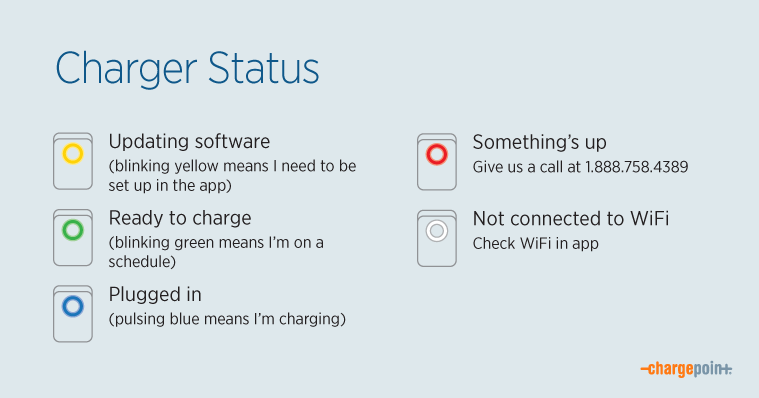
The white light on a ChargePoint charger shows its current status. Understanding this light helps users know what the charger is doing. It is important to know the difference between blinking and solid white lights. These lights tell you if the charger is ready, connecting, or facing an issue.
Indications Of Blinking White Led
A blinking white LED usually means the charger is trying to connect. It tries to link with the Wi-Fi network or the ChargePoint system. This blinking shows the charger is active but not fully ready to charge yet. It could also mean the charger is updating its software. During this time, charging may not be possible.
Differences Between Solid And Blinking White
A solid white light means the charger is ready and waiting for a car. It is fully connected and prepared to start charging. The blinking white light, by contrast, signals a connection process or update. Solid white shows normal operation. Blinking white shows an ongoing task or issue to resolve.

Common Causes Of Blinking White
The blinking white light on your ChargePoint charger signals an issue that needs attention. Understanding the common causes helps fix the problem quickly. This section covers three main reasons why the white light blinks.
Wifi Connectivity Issues
The most frequent cause is WiFi connection problems. The charger needs a stable internet link to work properly. A weak or lost WiFi signal makes the light blink white. Check your router and try moving the charger closer to the WiFi source. Sometimes, resetting your router can restore the connection. Using a WiFi extender might help if your charger is far from the router.
Power Supply Problems
Power issues can also cause the blinking white light. The charger may not get enough electricity or have an unstable power supply. Check the circuit breaker and make sure it is on. Inspect the power cable for damage or loose connections. A faulty outlet or wiring can stop the charger from working right. Fixing power supply problems often stops the blinking.
Firmware Or Software Glitches
Software bugs or outdated firmware can lead to the blinking white light. The charger runs on software that needs updates to function well. Use the ChargePoint app to check for available updates. Sometimes, restarting the charger or restoring factory settings solves the issue. Keeping the software current prevents glitches and ensures smooth operation.
Wifi Troubleshooting Steps
WiFi connectivity is vital for your ChargePoint charger to work properly. When the charger blinks white, it may signal a WiFi connection issue. Follow these simple steps to fix WiFi troubles and get your charger online quickly.
Checking Network Strength
Start by checking the WiFi signal near your charger. Use your phone or laptop to test the signal strength. Move closer to the router to see if the connection improves. Weak signals can stop your charger from connecting properly. Place the charger where the signal is strong and stable.
Using Wifi Range Extenders
If the WiFi signal is weak at the charger’s location, try a WiFi range extender. These devices boost your network’s reach. Place the extender halfway between the router and the charger. This can improve signal strength and connection quality. A stronger signal helps the charger stay connected without blinking white.
Restarting Router And Charger
Power cycle your router and ChargePoint charger to refresh connections. Turn off your router and wait 30 seconds before turning it back on. Unplug the charger, wait a minute, then plug it back in. This process clears temporary issues and helps the charger reconnect to WiFi smoothly.
Power And Hardware Fixes
Power and hardware issues often cause the ChargePoint to blink white. Fixing these problems can restore normal charging quickly. Start with simple checks and basic resets. This approach saves time and avoids costly repairs.
Inspecting Charging Port And Cable
Look closely at the charging port and cable. Dirt, dust, or damage can stop the charger from working. Clean the port gently with a soft cloth. Check the cable for cuts or bends. Replace the cable if it looks worn out. A clean and intact connection ensures proper power flow.
Resetting Circuit Breaker
Find the circuit breaker connected to your ChargePoint. Switch it off for about 30 seconds. Then, turn it back on. This reset can clear electrical faults causing the blinking light. It restores power safely and often fixes minor hardware glitches.
Unplugging And Reconnecting Charger
Unplug the charger from the power source and your vehicle. Wait a few seconds before plugging it back in. This simple action refreshes the charger’s system. It can solve temporary connection problems and stop the white blinking light.
Using The Chargepoint App
The ChargePoint app is a useful tool for managing your EV charger remotely. It helps you troubleshoot and fix common issues quickly. The app connects you directly to your ChargePoint charger. This connection allows you to check its status and control its functions from your phone.
Using the app reduces downtime. It also improves your charging experience. You can perform key actions like checking network errors, rebooting the device, or restoring factory settings. These options keep your charger running smoothly and safely.
Detecting Network Errors
The app shows if your charger has network problems. It alerts you when the charger can’t connect to Wi-Fi. This helps you act fast to fix the issue. The app may suggest simple steps like moving your router or resetting your modem. Spotting errors early avoids charging interruptions.
Initiating Remote Reboot
You can restart your charger using the app. A remote reboot clears temporary glitches without physical access. This feature saves time and effort. Just tap the reboot option in the app menu. The charger will power cycle and try to reconnect to the network. Many common issues resolve with a simple reboot.
Restoring Factory Settings
If problems persist, restoring factory settings is an option. The app guides you through this reset. It erases all custom configurations and returns the charger to default mode. This step can fix deeper software problems. Use it only when other fixes fail, as it deletes saved settings.
Firmware Updates And Compatibility
Firmware updates keep your ChargePoint charger running smoothly. They fix bugs and add new features. Compatibility with vehicle models depends on updated firmware. Regular updates improve charger performance and connection stability. Understanding how to check and handle updates helps avoid issues like the blinking white light.
Checking For Updates
Use the ChargePoint app to check for firmware updates. The app notifies you when new firmware is available. Connect your charger to Wi-Fi to download updates. Updates install automatically or with your approval. Keep your charger online during the update process to avoid interruptions.
Handling Update Failures
Update failures can cause the charger to blink white. Restart your charger by unplugging and plugging it back in. Check your Wi-Fi connection for stability. Retry the update through the app if it fails. Contact ChargePoint support if problems continue after multiple attempts.
Compatibility With Vehicle Models
Firmware updates ensure your charger works with new EV models. Older firmware may cause charging errors or slow charging. Most updates add support for the latest car software. Confirm your vehicle model is supported by the current firmware. Regular updates help maintain smooth charging for all compatible vehicles.
When To Contact Support
Knowing when to contact ChargePoint support is important for quick and effective solutions. Some issues are easy to fix at home, but others need professional help. Understanding the signs can save time and prevent damage to your charger.
Persistent Blinking After Fixes
If the white light keeps blinking after trying basic fixes, contact support. This includes restarting the charger, checking the Wi-Fi, and resetting the device. Persistent blinking may signal a deeper problem with software or hardware. Support can guide you through advanced troubleshooting steps or schedule a technician visit.
Hardware Replacement Options
Support can help if your charger needs hardware replacement. They will confirm if parts like the cable, screen, or circuit board are faulty. You might get a replacement unit or specific parts sent to you. Make sure to explain the problem clearly to get the right solution fast.
Warranty And Service Information
Check your warranty status before contacting support. ChargePoint usually covers repairs and replacements under warranty. Support will explain what services are free and what may cost extra. Knowing this saves money and avoids surprises. They can also inform you about extended service plans.
Frequently Asked Questions
Why Is My Chargepoint Not Connecting?
Your ChargePoint may not connect due to weak WiFi, incorrect setup, or an Internet outage. Check WiFi strength and reset the charger.
How Do I Reset My Chargepoint Charger?
Unplug your ChargePoint charger, then plug it back in. Open the app, go to Settings, and select Restore to Factory Default. Flip the circuit breaker off and on to complete the reset.
Why Is My Charger Light Blinking White?
A blinking white charger light means it’s trying to connect to Wi-Fi or updating firmware. Check your network or restart the charger.
Why Is My Car Charger Flashing White?
A flashing white car charger means it is connected to Wi-Fi but smart charging is unavailable. You can still boost charge manually.
What Does A Blinking White Light On Chargepoint Mean?
A blinking white light shows the charger is trying to connect to Wi-Fi. It means the charger is powered but not fully ready to charge yet.
Conclusion
A blinking white light on your ChargePoint means it’s trying to connect. Check your WiFi and internet to ensure stable connection. Restart the charger by unplugging it and plugging it back in. Use the ChargePoint app to spot network errors and reset settings if needed.
Keep the charging port clean and free from dirt or loose connections. These simple steps often fix the blinking white light issue quickly. Stay patient and follow the troubleshooting tips to get your charger working properly again.