Is your Cox modem showing a blue blinking light, and you’re not sure what it means? You’re not alone.
That little light can cause a lot of confusion and frustration. But don’t worry—understanding why it blinks and what you can do about it is easier than you think. You’ll discover exactly what the blue blinking light on your Cox modem means and how to fix it fast.
Keep reading to get your internet back to smooth, reliable speed without the hassle.
Causes Of Blue Blinking Light
The blue blinking light on your Cox modem signals a problem. It shows the modem is trying to connect but cannot complete the process. This blinking can happen for several reasons. Understanding these causes helps you fix the issue faster.
Connection Issues
Connection problems are the most common cause. Loose cables or bad wiring can stop the modem from linking to the internet. Sometimes, the modem fails to get a strong signal from the cable line. This causes the blue light to blink as it tries to connect.
Firmware Problems
Firmware is the software inside your modem. Old or corrupted firmware can cause the blue light to blink. The modem struggles to perform tasks with bad firmware. Updating or resetting the firmware often solves this problem.
Hardware Malfunctions
Hardware problems inside the modem can also trigger the blue blinking light. Faulty parts or overheating can stop the modem from working correctly. If the device is old or damaged, it may need repair or replacement.
Network Outages
Sometimes, the issue is outside your home. Network outages from Cox can cause the modem to blink blue. These outages affect many users and stop internet connections temporarily. Waiting for the service to restore often clears the blinking light.

Basic Troubleshooting Steps
Basic troubleshooting helps fix common issues with your Blue Blinking Light Cox Modem. Follow these simple steps to solve connection problems quickly. These methods work well for most users and require no special tools.
Restarting The Modem
Turn off your modem by pressing the power button or unplugging it. Wait for 30 seconds to 1 minute. Plug it back in and turn it on. This refreshes the system and often fixes blinking light problems.
Checking Cable Connections
Ensure all cables are firmly connected to the modem and wall outlets. Check the coaxial cable for any damage or loose fitting. Tighten all connections gently but securely. Loose cables can cause the blue light to blink.
Resetting To Factory Settings
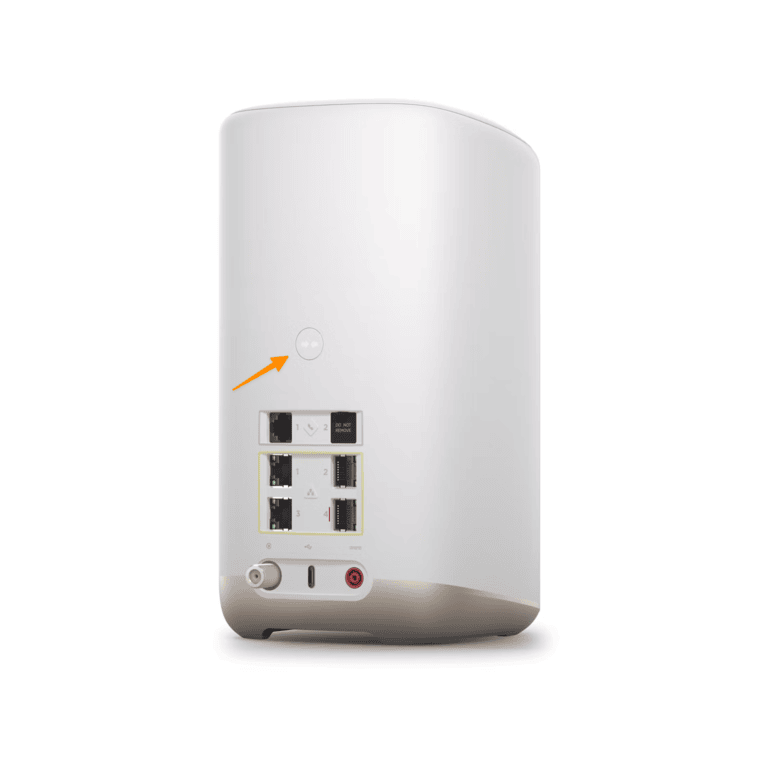
Locate the reset button on your modem, usually a small hole. Use a paperclip to press and hold the button for about 10 seconds. Release it and wait for the modem to restart. This restores default settings and clears errors.
Advanced Fixes
Advanced fixes help solve the blue blinking light issue on your Cox modem. These steps go beyond basic checks and require some technical work. They target deeper problems that cause the light to blink continuously. Follow each step carefully to improve your modem’s performance and connection stability.
Updating Firmware
Firmware controls how your modem works. Outdated firmware can cause errors and blinking lights. Check your modem’s settings page for firmware updates. Download and install the latest version. This can fix bugs and improve device stability.
Adjusting Network Settings
Incorrect network settings may trigger the blue blinking light. Access your modem’s control panel through a web browser. Review settings like IP address, DNS, and connection mode. Reset these settings to default if unsure. Proper settings can stop the blinking and restore your internet.
Replacing Faulty Hardware
Hardware problems often cause persistent blinking lights. Inspect cables and connectors for damage or loose fits. Replace any damaged Ethernet or coaxial cables. If the modem itself is faulty, contact Cox for a replacement. New hardware can solve the blinking light issue permanently.
When To Contact Cox Support
The blue blinking light on your Cox modem can be confusing. It may signal a simple issue or something that needs expert help. Knowing when to contact Cox support can save time and avoid frustration. This section helps you decide the best moment to reach out for help.
Identifying Persistent Issues
Sometimes the blue light blinks for a short time. This is normal during updates or resets. Call Cox support if the blinking lasts more than 30 minutes. Also, contact support if your internet connection is slow or drops often. Persistent blinking with no internet is a clear sign to get help. This means the modem may not connect to the network properly.
Preparing For Support Call
Before calling Cox support, gather important information. Note the modem model and any error messages. Write down the exact pattern of the blinking light. Check if other devices have internet problems too. Restart your modem and router once to see if that helps. These steps will speed up the support process. Being prepared helps the technician understand your issue quickly.
What To Expect From Customer Service
When you contact Cox, a technician will ask about your problem. They may guide you through simple fixes over the phone. If needed, they can run remote tests on your modem. The goal is to fix the issue without a visit. Sometimes, a technician may schedule an appointment. You will get clear instructions and support throughout the process.
Preventing Future Connection Problems
Preventing future connection problems with your Blue Blinking Light Cox Modem is crucial. Small steps can keep your internet steady and fast. Regular care and smart setup help avoid many issues.
Regular Modem Maintenance
Keep your modem clean and dust-free. Dust can cause overheating and slow performance. Restart your modem once a week. This clears temporary glitches and refreshes the connection. Check cables for damage and replace if needed. A loose or broken cable can cause blinking lights and drops.
Optimizing Network Setup
Place your modem in a central, open spot. Avoid walls and metal objects that block signals. Use a good quality router with the modem for better coverage. Change the Wi-Fi channel to reduce interference from neighbors. Secure your network with a strong password. Unwanted users can slow your connection.
Monitoring Connection Stability
Use apps or tools to check your internet speed regularly. Spot slowdowns early before they get worse. Note the times when the connection blinks or drops. This helps identify patterns or external causes. Contact Cox support with detailed info if problems persist.
Frequently Asked Questions
What Does A Blue Blinking Light On Cox Modem Mean?
A blue blinking light shows your modem is trying to connect to the internet. It means the device is syncing with the network. Wait a few minutes for it to finish.
Why Is My Cox Modem’s Blue Light Blinking Constantly?
A constant blue blink may indicate connection issues or firmware updates. Check all cables and restart the modem. Contact support if the light keeps blinking.
How Long Should Cox Modem’s Blue Light Blink During Setup?
The blue light usually blinks for 5 to 10 minutes during setup. This time lets the modem connect and register on the network. If it takes longer, try rebooting.
Can A Blue Blinking Light On Cox Modem Cause Internet Problems?
Yes, a blinking blue light can mean the internet is not fully connected. This can cause slow or no internet access. Fixing the issue often restores the connection.
How Do I Fix A Blue Blinking Light On My Cox Modem?
Restart your modem by unplugging it for 30 seconds, then plug it back in. Check all cables to ensure they are secure. Call Cox support if the light still blinks.
Conclusion
A blue blinking light on your Cox modem shows it is trying to connect. This can mean the modem is starting up or facing signal issues. Checking cables and restarting the modem often helps. Staying calm and patient is key.
Understanding this light saves time and frustration. Keep your modem updated and placed well for better signals. Now, you know what that blue blinking light means and how to handle it.