Is your Dell computer showing an amber blinking light and leaving you wondering what’s wrong? You’re not alone.
That steady or flashing amber light is your computer’s way of telling you there’s a problem, often related to power or hardware issues. But don’t worry—understanding what this signal means and how to fix it can save you time and stress.
You’ll discover exactly why your Dell’s amber light is blinking and step-by-step solutions to get your machine back up and running smoothly. Keep reading to turn that worrying light into a sign of success.

Amber Light Meaning
The amber blinking light on a Dell device signals a warning. This light often points to an issue that needs attention. Understanding its meaning helps in quick troubleshooting. It is important to know what the amber light indicates. This way, you can fix the problem or seek help faster.
Power Issues Indicated
An amber blinking light usually means there is a power issue. It can show that the power supply is not working properly. Sometimes, the battery might be failing or not charging. This light can also mean the computer is not getting enough power. Checking the power adapter and battery is a good first step. Loose connections or damaged cables can cause this problem. Fixing these can stop the amber light from blinking.
Error Codes Explained
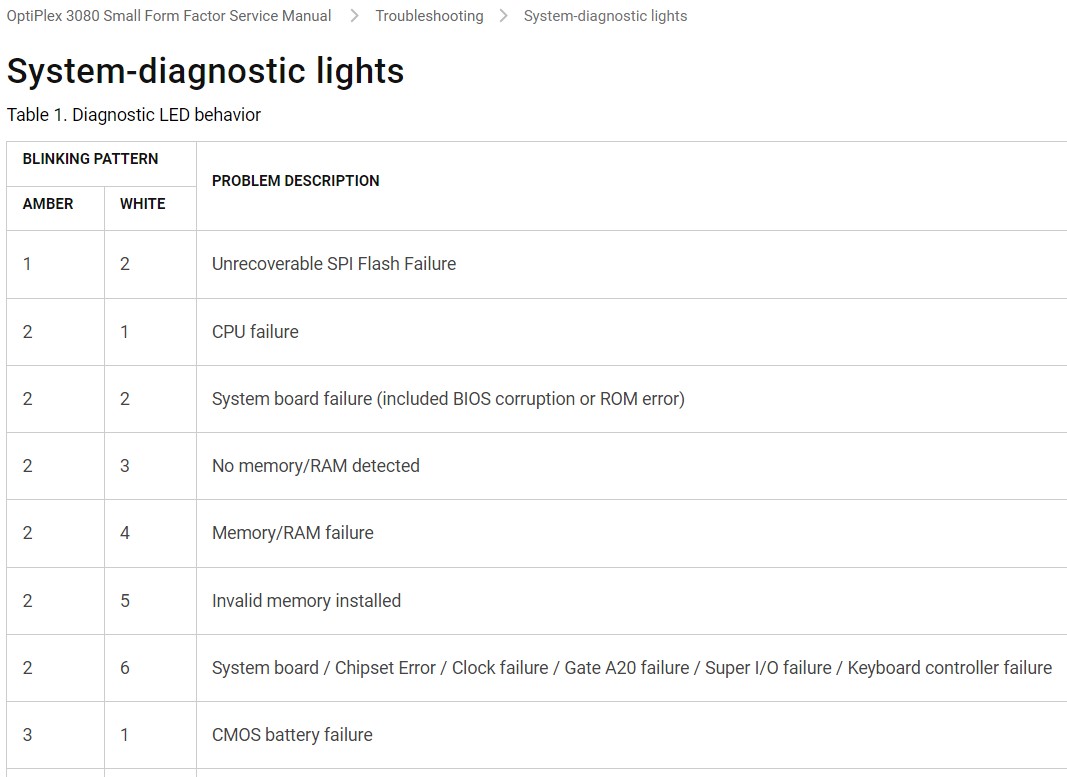
Dell uses the amber blinking light to show error codes. The number of blinks tells what type of problem exists. For example, two blinks may mean a memory issue. Three blinks might point to a motherboard problem. These codes help identify the exact fault. You can count the flashes to find the code. Then, check Dell’s support guide for the meaning. This makes it easier to know what part needs repair or replacement.
Common Causes
The amber blinking light on a Dell computer signals a problem. It often points to internal issues that need fixing. Understanding common causes helps in troubleshooting quickly. The main reasons include battery problems, power supply failures, and hardware malfunctions. Each affects your Dell device differently but can trigger the amber light.
Battery Problems
Batteries can fail over time or suddenly. Rapid battery drain is a common sign. The laptop may shut down unexpectedly despite showing charge. Some batteries overheat or swell, causing safety risks. Slow or no charging also indicates battery issues. Checking battery health is crucial to spot these problems early.
Power Supply Failures
The power supply provides electricity to your computer. Faults here often cause the amber blinking light. A failing power supply may not deliver steady power. This leads to boot failures or sudden shutdowns. Dell computers have built-in power supply tests to detect these faults quickly.
Hardware Malfunctions
Hardware issues can trigger the amber light too. Faulty RAM, motherboard, or other components affect system stability. Loose or damaged parts also cause errors. These malfunctions often require professional diagnosis and repair. Identifying hardware faults early helps prevent further damage.
Battery Health Checks
Battery health checks are essential for maintaining your Dell laptop’s performance. A weak battery can cause sudden shutdowns and slow charging. Regular checks help you spot problems early. This prevents data loss and keeps your device reliable. Several tools are available to test battery health easily.
Bios/uefi Diagnostics
Access the BIOS or UEFI menu during startup. Look for the Battery Information or System Health section. Here, you find battery status such as “Good” or a health percentage. This built-in test runs quickly without extra software. It provides a clear view of your battery’s condition.
Windows Battery Report
Windows offers a detailed battery report tool. Open Command Prompt and type powercfg /batteryreport. The system creates a report file in your user folder. Open the report to see battery capacity, charge cycles, and usage history. This helps identify if the battery capacity has dropped significantly.
Dell Power Manager Tools
Dell Power Manager is free software designed for Dell laptops. It shows real-time battery health and charging status. You can adjust settings to extend battery life. The tool also alerts you if the battery needs replacement. This software makes battery management simple and effective.
Quick Fixes
The amber blinking light on a Dell device signals power or hardware issues. Quick fixes can often solve this problem fast. These steps are simple and do not require expert skills. Follow each carefully to restore your Dell device’s normal function.
Resetting Power Supply
Turn off your Dell computer and unplug the power cord. Hold the power button for 15 seconds to discharge remaining power. Plug the power cord back and turn on the device. This reset can clear minor power faults causing the amber light.
Reconnecting Battery
Power off the laptop and remove the battery carefully. Wait for a minute before reinserting it firmly. Ensure all connections are secure and clean. Power on the laptop to check if the amber light stops blinking. Loose battery connections often trigger this warning light.
Updating Bios And Drivers
Outdated BIOS or drivers can cause hardware errors and blinking lights. Visit Dell’s official website to download the latest BIOS and drivers for your model. Follow update instructions exactly to avoid installation problems. Updated software improves hardware communication and may fix the blinking amber light issue.
When To Replace Battery
Knowing when to replace your Dell laptop battery is key to keeping your device running smoothly. The amber blinking light often signals battery issues. Replacing the battery at the right time prevents unexpected shutdowns and hardware damage.
Regular checks help catch battery problems early. Watch for clear signs that indicate replacement is necessary. Acting on these signs saves time and keeps your laptop reliable.
Signs Of Physical Damage
Physical damage to the battery is a strong reason to replace it immediately. Look for swelling or bulging on the battery case. Cracks, leaks, or corrosion are also warning signs. Damaged batteries can be unsafe and harm your laptop.
Never ignore these signs. A damaged battery can overheat or cause your laptop to fail. Replace the battery to avoid further problems and ensure safety.
Decreased Battery Performance
Battery performance drops with age and use. Notice if your battery drains very fast compared to before. Unexpected shutdowns, even when battery shows charge, signal poor performance. Slow charging or the battery not charging at all also means replacement is needed.
Overheating during use or charging is another sign. A healthy battery should stay cool. Replacing the battery restores normal function and prolongs your laptop’s life.
Using Dell Self-test
Using Dell Self-Test helps identify hardware issues causing the amber blinking light. This built-in tool checks your computer’s components quickly. It saves time and guides you on the next steps. Running these tests is simple and does not require extra software. The results help you understand the problem clearly.
Running Built-in Diagnostics
Turn off your Dell computer first. Press the power button and immediately press the F12 key repeatedly. This opens the Boot Menu. Select “Diagnostics” using the arrow keys and press Enter. The system will start checking hardware parts automatically. Wait patiently as the test runs. Avoid turning off your PC during this process.
Interpreting Test Results
The diagnostics tool shows messages after testing. A “Pass” means the hardware is fine. An error code means there is a problem. Note down the error code carefully. Use the code to find solutions on Dell’s support site or manuals. This helps fix issues like power supply or memory faults. Clear results guide you to repair or replace parts properly.
Advanced Troubleshooting
Advanced troubleshooting helps solve the amber blinking light issue on Dell computers. This light often signals hardware or power problems. Understanding how to check your device can save time and money. Follow the steps below for a thorough approach.
Checking Internal Connections
Start by unplugging your Dell computer from power. Open the case carefully to avoid damage. Look at all internal cables and connectors. Loose or disconnected cables can cause the amber light to blink. Ensure the power supply cables are firmly attached to the motherboard and components. Check the RAM sticks and reseat them if needed. Also, inspect the hard drive connections. Clean any dust that may block proper contact. Once done, close the case and plug the power back in. Turn on the computer to see if the light stops blinking.
Consulting Dell Support
If the problem continues, reach out to Dell Support for help. They have tools and resources to diagnose complex issues. Provide them with your computer’s model and the exact pattern of the blinking light. This information helps identify the specific fault. Dell may guide you through advanced fixes or arrange a repair. Using official support ensures safe and effective solutions. Keep your warranty and purchase details ready for faster service.
Frequently Asked Questions
Why Is My Dell Computer Blinking Amber Light?
A blinking amber light on a Dell computer signals a hardware or power issue. Run Dell’s built-in diagnostic test to identify the faulty component.
How To Fix Orange Light Blinking On Dell Laptop?
Blinking orange light on a Dell laptop usually signals battery or power issues. Check battery health via BIOS diagnostics. Replace faulty battery or charger. Ensure proper connection and try a hard reset by holding the power button for 15 seconds.
Contact Dell support if problem persists.
How To Tell If A Dell Battery Is Bad?
A bad Dell battery drains quickly, causes sudden shutdowns, overheats, swells, or charges slowly. Use BIOS diagnostics or run powercfg /batteryreport to check health. Replace if swelling, damage, or poor health appears.
What Does A Blinking Amber Light Mean?
A blinking amber light on a Dell device signals a power supply or battery issue. Run built-in diagnostics to identify the fault.
What Does The Amber Blinking Light On Dell Mean?
An amber blinking light usually signals a hardware or power issue. It warns that your Dell device needs attention or repair.
Conclusion
The amber blinking light on your Dell signals a hardware or power issue. Checking the power supply and battery health helps pinpoint the problem. Running built-in diagnostics gives clear error codes to guide you. Simple steps can often fix common faults quickly.
Staying calm and following these tips saves time and stress. Keep your Dell running smoothly by addressing blinking lights early.