If you’ve noticed your AirPods case blinking an orange light, you’re probably wondering what it means and how to fix it. That blinking orange light isn’t just a random signal—it’s your AirPods trying to tell you something important about their status.
Whether it’s a charging issue, a connection problem, or something else, understanding what that orange glow means can save you time and frustration. You’ll learn exactly why your AirPods are blinking orange and the simple steps you can take to get them back to working perfectly.
Keep reading—you’re just moments away from solving this common AirPods mystery!
Airpods Orange Light Meanings
The orange light on your AirPods case can tell you a lot about its status. It helps you understand whether your AirPods are charging, need attention, or have connection issues. Recognizing these signals saves time and prevents confusion.
Below are the key meanings of the orange light on AirPods. Knowing them makes it easier to manage your device.
Solid Orange Light
A solid orange light means your AirPods case is charging the AirPods inside it. It also means the case has some charge but not enough for a full AirPods charge. If the AirPods are out of the case and the light is solid orange, the case battery is low. You should connect the case to a charger soon. This light shows your AirPods are getting power but are not yet fully charged.
Flashing Orange Light
A flashing orange light usually signals a problem. It often means the AirPods have trouble pairing with your device. This can happen after a failed connection or software issue. The flashing orange light suggests you need to reset your AirPods. Press and hold the button on the case until the light changes. This resets the connection and often fixes the problem.

Quick Checks Before Fixing
Before trying to fix the AirPod blinking orange light, conduct some quick checks. These checks help identify simple issues that you can solve fast. They save time and avoid unnecessary troubleshooting steps.
Battery Levels
Check the battery levels of both the AirPods and the charging case. Low battery often causes the orange light to blink. Open the AirPods case near your iPhone to see the battery status. If the battery is low, the case or AirPods need charging.
Charging Status
Make sure the charging case is properly connected to power. Use the original charging cable and a working power source. Look for the orange light while charging. A solid orange light means charging is in progress. If the light blinks, the case may have trouble charging.
Basic Fixes For Orange Light
The orange light on your AirPods can signal different issues. Basic fixes often solve most problems quickly. These steps help restore normal function without hassle.
Try simple methods first to save time and effort. Follow the easy tips below to address the blinking orange light.
Plug In And Charge
Connect your AirPods case to a power source using the original cable. Allow it to charge for at least 30 minutes. A low battery often causes the orange light to appear. Ensure the charging port is secure and the power outlet works.
Clean Charging Contacts
Remove any dirt or debris from the AirPods and case contacts. Use a soft, dry cloth or a cotton swab gently. Dirty contacts can block charging and cause the orange light. Keep the charging area clean for better connection.
Restart Airpods
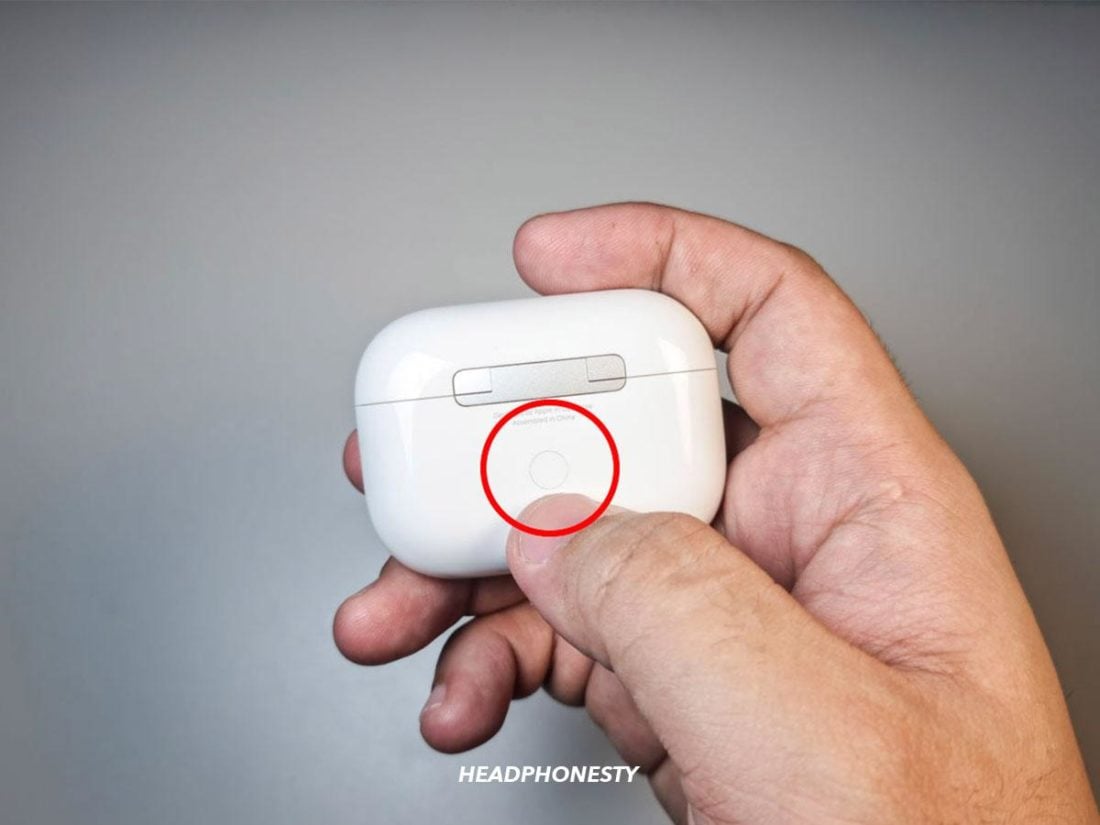
Place both AirPods inside the case and close the lid. Wait for 15 seconds, then open the lid again. Press and hold the setup button on the back of the case until the light flashes white. This resets the AirPods and often fixes the blinking orange light issue.
Resetting Your Airpods
Resetting your AirPods can solve many issues, especially when you see a blinking orange light. This light often means your AirPods have trouble connecting or charging. Resetting clears these problems and restores your AirPods to their factory settings. The process differs slightly between older and newer models. Follow the right steps for your AirPods to fix the blinking orange light.
Steps For Older Models
First, place your AirPods in the charging case. Keep the lid open. Locate the small button on the back of the case. Press and hold this button for about 15 seconds. The light on the front will blink white, then orange. When it blinks white again, release the button. This means your AirPods have reset. Close the lid, then reopen it. Now, reconnect your AirPods to your device.
Steps For Newer Models
Put your AirPods in the charging case and open the lid. Find the setup button on the back of the case. Press and hold it for 15 seconds until the light flashes amber, then white. This signals a successful reset. Close the lid and wait for 30 seconds. Open the lid and reconnect your AirPods with your device. This process can fix many blinking orange light issues on newer AirPods models.
Advanced Troubleshooting
Advanced troubleshooting helps solve tricky AirPod blinking orange light problems. This section guides you through simple yet effective steps. These steps target less obvious issues that basic fixes may miss. Follow each step carefully for better results.
Try Different Charging Cable Or Adapter
Sometimes the charging cable or adapter causes the blinking orange light. Check your current cable for damage or wear. Use another Apple-certified cable and adapter to charge your AirPods case. A faulty charger often stops proper charging. Switching cables can quickly show if this is the problem. If the light stops blinking, replace the old charger.
Check For Debris In Case And Airpods
Dirt or debris may block the charging contacts inside the case. Look inside the charging case and on the AirPods themselves. Use a soft, dry brush or cloth to clean any dust or dirt. Avoid liquids to prevent damage. Cleaning improves the connection between AirPods and the case. This step often fixes blinking orange lights caused by poor contact.
Use Device Screen Prompts
Your iPhone or iPad can give useful prompts for AirPods issues. Open the Bluetooth settings and tap the AirPods name. Look for error messages or suggestions. Follow on-screen instructions to reset or reconnect your AirPods. These prompts help diagnose the problem easily. Using device guidance often leads to quick fixes.
When To Contact Apple Support
Seeing an orange blinking light on your AirPods can be confusing. It often means a problem with charging or connection. Many issues can be fixed at home. Sometimes, the problem needs expert help from Apple Support.
Contacting Apple Support is the best step when your AirPods do not respond to simple fixes. If the orange light keeps blinking after trying resets, it may show a deeper issue. Apple can diagnose and offer repair or replacement options.
Persistent Blinking Orange Light
If your AirPods keep blinking orange despite resetting and charging, contact Apple Support. This often means a hardware or software fault inside the case or AirPods. Apple can run tests to find the exact cause.
Airpods Not Charging Properly
When the orange light appears and your AirPods do not charge fully, it signals a charging problem. This issue could be with the case battery or the AirPods themselves. Apple Support can provide solutions or repairs.
Pairing Issues That Won’t Resolve
Orange blinking can mean pairing errors. If resetting your AirPods does not fix connection problems with your device, reach out to Apple Support. They can guide you through advanced troubleshooting or replace faulty parts.
Physical Damage Or Water Exposure
Damage or water exposure can cause the orange light to blink. If your AirPods or case got wet or dropped, and the issue persists, get help from Apple. They can assess the damage and suggest repair or replacement.
Frequently Asked Questions
How Do I Fix My Airpods Blinking Orange?
Press and hold the button on the back of the AirPods case until the front light flashes white. Then reconnect to your device. Charge the case if the light stays orange. Clean the charging contacts if issues persist. This resets pairing and fixes blinking orange light errors.
What Do I Do If My Airpods Are Flashing Amber And They Won’t Reset?
Charge your AirPods case fully and clean the charging contacts gently. Press and hold the reset button for 15 seconds until the light flashes white. Try reconnecting to your device. If flashing amber persists, contact Apple Support for further help.
Does Orange Light On Airpods Mean Dead?
No, an orange light on AirPods doesn’t mean they are dead. It indicates charging, low battery, or a connection issue. A solid orange shows charging or low case battery, while flashing orange signals a pairing error needing a reset. Plug in or reset to fix it.
How Do I Reset A Dead Airpod Case?
To reset a dead AirPod case, charge it for at least 30 minutes. Then, press and hold the button on the back until the LED flashes amber and then white. This resets the case and AirPods connection.
What Does Airpod Blinking Orange Light Mean?
A blinking orange light usually shows a pairing or connection problem. It means your AirPods need to be reset or reconnected.
Conclusion
An orange blinking light on your AirPods signals a connection or charging issue. Try charging the case fully to see if the light changes. If the light keeps blinking, reset the AirPods by holding the button on the case. This often fixes pairing problems quickly.
Keep your AirPods updated and clean for better performance. Small steps can save you time and frustration. Understanding these signals helps you enjoy your AirPods longer and without interruption. Stay patient and follow the simple fixes to get your AirPods working again.