
Have you ever powered on your Mac only to see a blinking folder with a question mark staring back at you? This unsettling symbol means your Mac can’t find its startup disk, leaving you stuck and unsure what to do next.
But don’t panic — this problem is more common than you think, and there are clear steps you can take to fix it. You’ll learn exactly why this blinking folder appears and how to bring your Mac back to life quickly and safely.
Keep reading, because your Mac’s smooth performance is just a few simple fixes away.
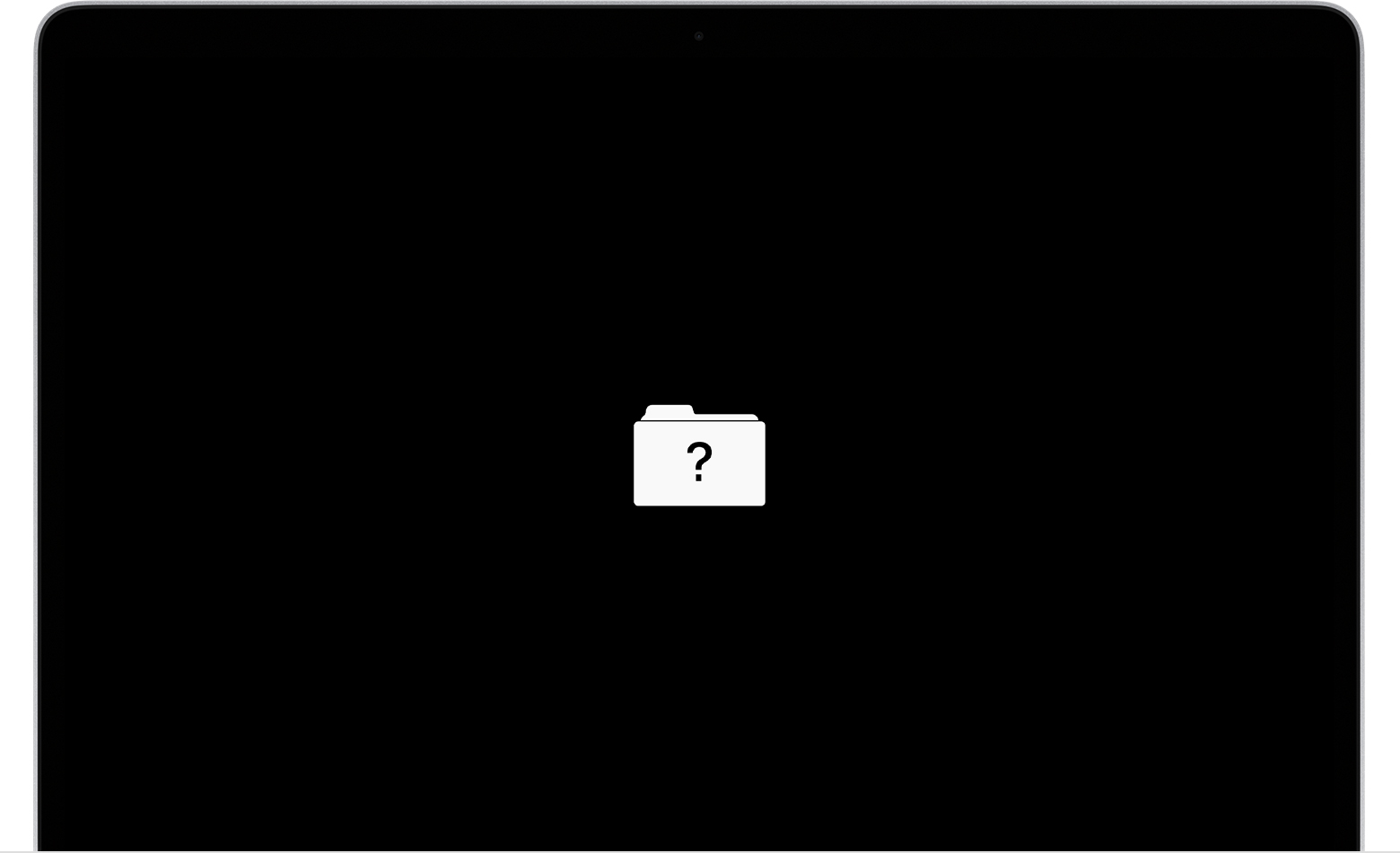
Cause Of Blinking Folder
The blinking folder with a question mark on a Mac signals a startup problem. It means your Mac cannot find its startup disk. This issue stops your Mac from loading the operating system properly.
There are several reasons for this error. Understanding the cause helps in fixing it quickly. The main causes include missing or damaged startup disk, corrupted system files, and hardware problems.
Startup Disk Not Found
Your Mac looks for the startup disk to load macOS. If the disk is missing or disconnected, the folder blinks. This can happen if the disk fails or if the system cannot locate it. Sometimes, the startup disk setting may change or get deleted.
Corrupted System Files
System files are essential for macOS to run. Corruption can occur due to improper shutdowns, malware, or failed updates. When these files are damaged, your Mac cannot boot. The blinking folder appears as the system tries and fails to load.
Hardware Issues
Hardware faults can stop your Mac from accessing the startup disk. Problems with the hard drive, SSD, or cable connections cause this error. In some cases, the logic board or other internal parts may fail. Hardware issues often require professional repair.
Using Macos Recovery
Using macOS Recovery is a key step to fix the blinking folder with a question mark. This mode helps access tools to repair your startup disk or reinstall macOS. It works even if your Mac cannot start normally. Follow the steps below to enter Recovery Mode and try disk repair.
Entering Recovery Mode
First, shut down your Mac completely. Unplug all devices except keyboard and mouse. Press the power button to turn it on. Immediately hold down the Command (⌘) and R keys together. Keep holding until the Apple logo or a spinning globe appears. This means your Mac has entered Recovery Mode.
Running Disk Utility
Once in Recovery Mode, a window called macOS Utilities will appear. Select the option labeled Disk Utility. In Disk Utility, look for your startup disk, usually named “Macintosh HD.” Click on it to highlight it. Then, press the First Aid button. Confirm by clicking Run to start the repair process. Disk Utility will check for errors and try to fix them.
Repairing Startup Disk
After Disk Utility finishes, check the results. If no errors appear or repairs succeed, restart your Mac from the Apple menu. If the blinking folder returns, repeat the Recovery Mode steps. If Disk Utility cannot fix the disk, you may need to erase it. Choose a format like APFS to reformat the drive. Then reinstall macOS using the macOS Utilities window. If your disk does not show up at all, the hardware might need professional service.
Reinstalling Macos
Reinstalling macOS can solve many startup problems on your Mac. It helps fix issues like the blinking folder with a question mark. This folder means your Mac cannot find a proper system to start from. Reinstalling the operating system puts fresh files on your disk. This often restores your Mac’s normal function without deleting your data.
Use reinstalling when basic repairs do not work. It is a safe step before erasing the entire disk. The process takes time but usually fixes the problem. Follow the right steps to avoid data loss and errors.
When To Reinstall
Try reinstalling macOS if Disk Utility cannot repair the disk. Also, reinstall when your Mac shows the blinking folder again after a restart. If your Mac starts but acts strangely, reinstalling might help. Choose this option before erasing your disk or seeking hardware repair.
Steps To Reinstall Macos
First, shut down your Mac and disconnect all extra devices. Restart your Mac and immediately hold Command + R keys. Keep holding until the Apple logo or spinning globe appears. This opens macOS Recovery mode.
Next, select “Reinstall macOS” from the options shown. Follow the on-screen instructions to select your disk and start reinstalling. Your Mac will download the latest compatible macOS version. The process can take a while depending on your internet speed.
After reinstalling, your Mac will restart automatically. Check if the blinking folder disappears. Your files and settings remain intact with this method.
Erasing Disk And Fresh Install
Erase your disk only if reinstalling does not fix the problem. This deletes all files, so backup important data first. Open Disk Utility from Recovery mode and select your startup disk. Click “Erase” and choose APFS or Mac OS Extended format.
After erasing, close Disk Utility and choose “Reinstall macOS.” This will install a fresh copy on a clean disk. This method removes corrupted files causing startup issues. Use it as a last resort or if you want a clean system.
Resetting Nvram/pram
Resetting the NVRAM or PRAM can fix many startup problems on your Mac. These small memory areas store important settings. Sometimes, corrupted settings cause the Mac to show the blinking folder with a question mark. Resetting clears these settings and forces the Mac to reload default values. This often helps the system find the startup disk again.
Purpose Of Nvram/pram Reset
NVRAM and PRAM store system settings like screen resolution, sound volume, and startup disk choice. Resetting them removes incorrect settings that block normal startup. This reset is a quick way to fix simple errors without erasing your data. It can solve issues related to display, startup disk, and sound problems. Resetting helps your Mac refresh these settings to work properly again.
How To Reset On Mac
First, shut down your Mac completely. Press the power button, then immediately hold these keys: Option + Command + P + R. Keep holding the keys for about 20 seconds. You might see the Apple logo appear and disappear twice. After releasing the keys, your Mac will restart with reset NVRAM/PRAM. Check if the blinking folder error is gone. This step often restores normal startup and solves minor system issues.
Checking External Drives And Connections
Checking external drives and connections is a crucial step when your Mac shows a blinking folder with a question mark. This sign often means your Mac cannot find a startup disk. Sometimes, the issue is not inside the Mac but with the cables or devices connected to it. Testing these connections can help you find and fix the problem fast.
Verifying Cables And Power
Start by checking the cables that connect your external drives. Make sure they are not damaged or loose. Use cables that you know work well. Check if the power supply for the external drive is plugged in and turned on. External drives need power to function correctly. Without it, your Mac may fail to detect the drive.
Disconnecting Non-essential Devices
Remove all devices that are not needed for startup. Sometimes, extra devices cause conflicts or slow down the Mac’s ability to find the correct disk. After disconnecting, restart your Mac to see if it boots normally. If it does, connect the devices one by one to find the one causing the issue. This simple step often solves the blinking folder problem.
When To Seek Professional Help
Knowing when to seek professional help is crucial if your Mac shows a blinking folder with a question mark. This symbol points to startup problems that you might not fix alone. Early expert intervention can save data and avoid costly repairs.
Some issues are beyond simple steps like restarting or using Disk Utility. Professionals have tools and skills to diagnose and fix deep problems. Do not wait too long if basic fixes do not work.
Disk Not Showing In Utility
The startup disk must appear in Disk Utility for repair attempts. If it does not show, the problem may be serious. Missing disks often mean the Mac cannot detect the drive. This issue may need hardware checks or data recovery tools.
Waiting or guessing can worsen the condition. A technician can test the drive connection and hardware status. They can guide the best steps to recover your Mac safely.
Failed Repairs And Reinstalls
Running First Aid in Disk Utility or reinstalling macOS often fixes the blinking folder. Failures in these steps signal deeper problems. If macOS reinstall does not solve the issue, the drive might be corrupted or damaged.
Attempting multiple reinstalls risks data loss. Experts can analyze system logs and hardware health. They provide safer repair or data backup options.
Possible Hardware Failures
Hardware problems cause the blinking folder icon frequently. Hard drives and SSDs can fail over time. Other components like cables, connectors, or the logic board may also be faulty.
Detecting hardware failure requires special diagnostic tools. Professionals can replace or repair parts properly. They ensure your Mac runs smoothly again without hidden faults.
Avoiding Future Issues
Preventing the Mac blinking folder with a question mark saves time and stress. Taking simple steps helps keep your Mac running smoothly. A proactive approach avoids many common startup problems. Focus on regular maintenance and care to protect your data and system.
Regular Backups
Back up your files often. Use Time Machine or other backup tools. Having a backup means you can restore data if your disk fails. Store backups on an external drive or in the cloud. This practice keeps your important information safe and ready to recover.
Keeping Software Updated
Keep your macOS updated to the latest version. Updates fix bugs and improve system stability. They also enhance security, protecting your Mac from threats. Regular updates reduce the chance of software conflicts that cause startup errors. Check for updates in System Preferences regularly.
Monitoring Disk Health
Check your disk’s health using Disk Utility or third-party tools. Look for errors or signs of wear. Run First Aid on your startup disk every few months. Early detection of disk problems helps avoid sudden failures. Replace the disk if it shows consistent errors or slow performance.
Frequently Asked Questions
How To Fix Blinking Question Mark Folder On Mac?
Restart your Mac holding Command + R to enter Recovery. Use Disk Utility’s First Aid to repair the startup disk. If repair fails, erase the disk and reinstall macOS. Seek professional service if the disk doesn’t appear or problems persist.
How Do I Get Rid Of The Circle Of Death On My Mac?
To stop the spinning circle on your Mac, press Command + Option + Esc. Then, force quit unresponsive apps. Restart your Mac to clear temporary issues. If it persists, update macOS and check for software conflicts or hardware problems.
How Do I Fix My Mac Won’t Boot Into Recovery Mode?
Shut down your Mac and disconnect all devices. Restart while holding Command (⌘) + R until the Apple logo appears. Use Disk Utility to repair the startup disk. If repair fails, erase the disk and reinstall macOS. Seek professional service if the disk doesn’t appear.
How To Get Out Of Recovery Mode On A Mac?
To exit recovery mode on a Mac, click the Apple menu and select Restart. Avoid holding any keys during startup.
What Does A Blinking Folder With Question Mark Mean On Mac?
A blinking folder with a question mark means Mac cannot find a startup disk. This usually shows a problem with the hard drive or system files. Your Mac is unable to start up normally.
Conclusion
A blinking folder with a question mark shows your Mac can’t find its startup disk. Running Disk Utility in Recovery Mode often fixes this issue. Sometimes, you may need to erase the disk and reinstall macOS. If the disk does not appear, your Mac might need professional service.
Always back up your data regularly to avoid loss. Taking quick action helps keep your Mac working smoothly. Don’t ignore this warning sign—it protects your files and system health.









